 FoilPass
How to turn a PDF ticket into an Apple Wallet pass
Guide · Updated
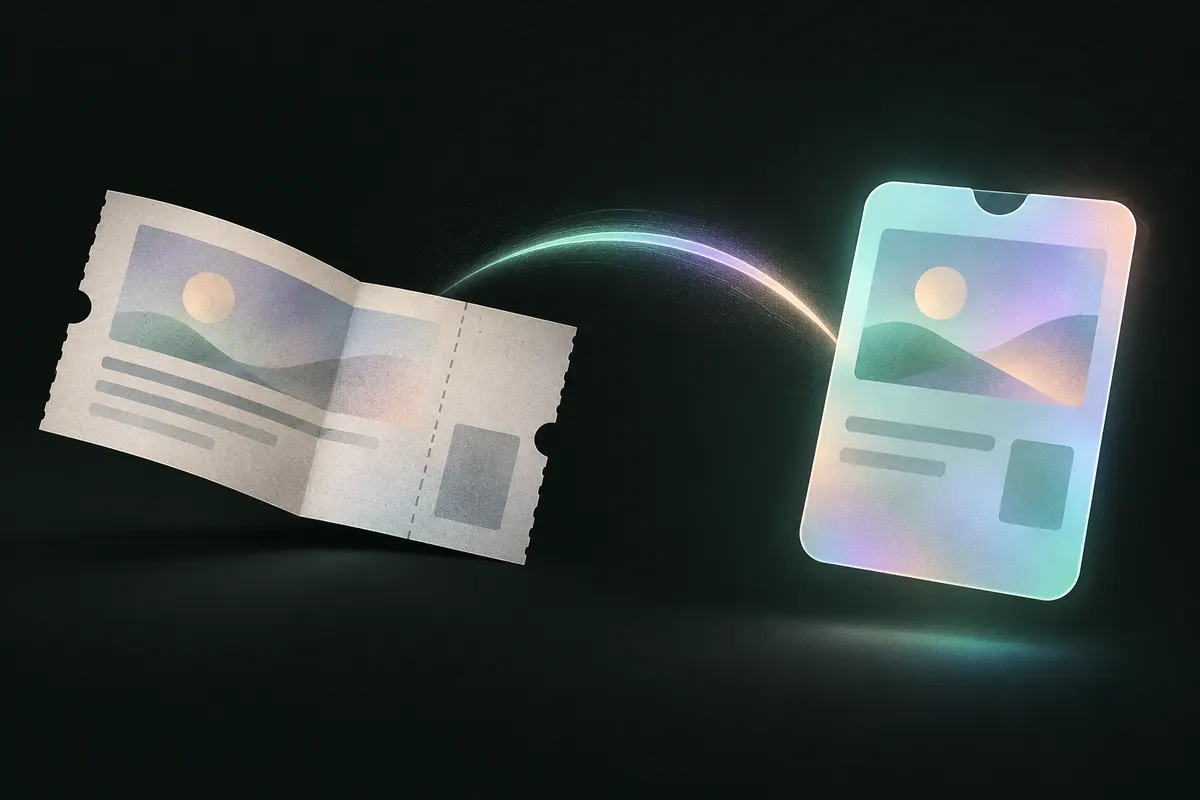
Plenty of venues still email tickets as a PDF with a QR code or barcode on it. At the door that means unlocking your phone, finding the email, opening the attachment and zooming in. A Wallet pass skips all of that: it shows up on your lock screen and your Apple Watch.
Why Wallet doesn't do this on its own
Apple Wallet only accepts passes that are signed with a certificate, so it can't open a PDF directly. iOS 27 added Create a Pass for scanning a code from a photo or the camera, but it doesn't import PDF files.
Converting a PDF with FoilPass
- Open FoilPass, tap New pass, then From a PDF ticket.
- Pick the PDF from Files or Mail. FoilPass renders each page on your iPhone and reads the barcodes there, so the PDF is never uploaded.
- If the PDF has several tickets, you pick which one to make. Each ticket becomes its own pass, so friends can each get theirs.
- Choose the Ticket style, add the date and venue, and tap Save and add to Apple Wallet.
Things to check before the event
- Barcode type. Wallet shows QR, PDF417, Aztec and Code 128 on every iPhone. iOS 27 adds EAN-13, Code 39, Codabar and ITF. FoilPass tells you if your ticket uses a type an older iPhone would show differently.
- Rotating codes. Tickets whose code changes every few seconds (like some official ticketing apps) can't be copied into any pass. Use the organizer's app for those.
- Keep the original. A pass you make yourself isn't issued by the venue. Keep the email in case staff want to see it.
Try it
FoilPass is coming soon to the App Store. It's free for your first three passes, with no ads and no account. Read the FAQ