 FoilPass
What iOS 27 Create a Pass can and can't do
Guide · Updated
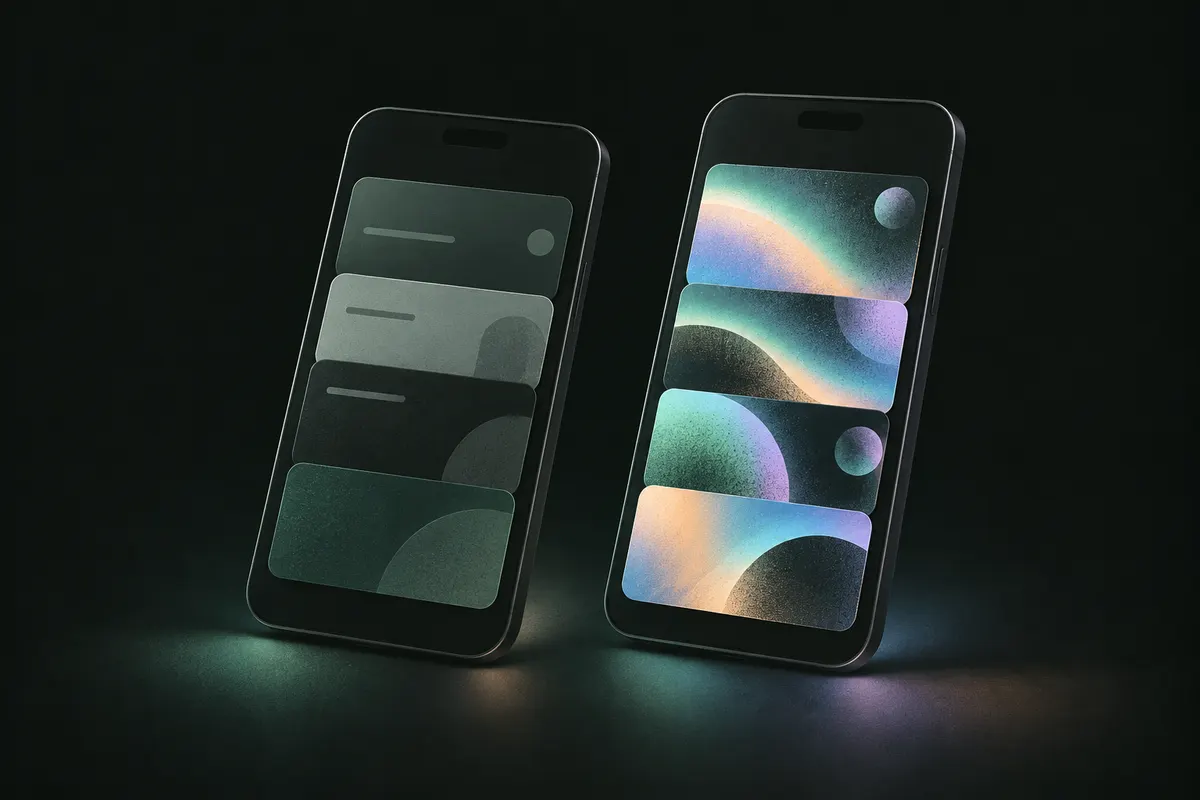
iOS 27 finally added a Create a Pass button to Wallet. Tap the plus button, choose Create a Pass, and you can scan a code with the camera or build one from a template. For a quick library card it's all you need.
What the built-in tool does well
- Three templates: Standard, Membership and Event.
- Scanning a card with the camera or a photo, with fields filled in for you (this part needs Apple Intelligence, so an iPhone 15 Pro or later).
- Editing colors and fields after you make the pass.
Where it stops
- No logos. You can't add the club's or shop's logo, and reviewers have noted that staff are more likely to accept a pass that looks like the real card.
- Limited looks. Twelve background colors and seven preset patterns.
- No PDF import. Emailed PDF tickets still have to be opened from Mail.
- Barcode choices aren't documented. If your card uses an unusual barcode type, you can't choose or check the format.
When a dedicated app makes sense
FoilPass is for when you want the pass to look right or when the built-in tool can't handle the source. It adds your logo, full poster artwork from a photo or AI, one pass per ticket from a PDF, and warnings when Wallet has to change a barcode type. Passes made in FoilPass work on iOS 16.4 and later, not just on iPhones with Apple Intelligence.
Details about iOS 27 come from Apple's documentation and early reviews, and may change with updates.
Try it
FoilPass is coming soon to the App Store. It's free for your first three passes, with no ads and no account. Read the FAQ